
Syndicates
Syndicates represent investor groups within an investor organization—typically used to pool members, define investment preferences and limits, track available capital, and view portfolio activity in one place.
What Syndicates are used for
Use Syndicates to:
- Organize investors into a syndicate group (membership-based or deal-by-deal)
- Track capacity and limits (Available Capital, Max Investment Size, Timing)
- Manage members and membership details (type, fees, available capital per member)
- Monitor portfolio activity tied to the syndicate (deals, total invested, average deal size)
- Store syndicate documents in a structured data room
- Maintain syndicate configuration (mission, industries of interest, primary contact)
Fields, tabs, and actions may vary depending on your organization’s configuration and role permissions.
Syndicates list (at a glance)
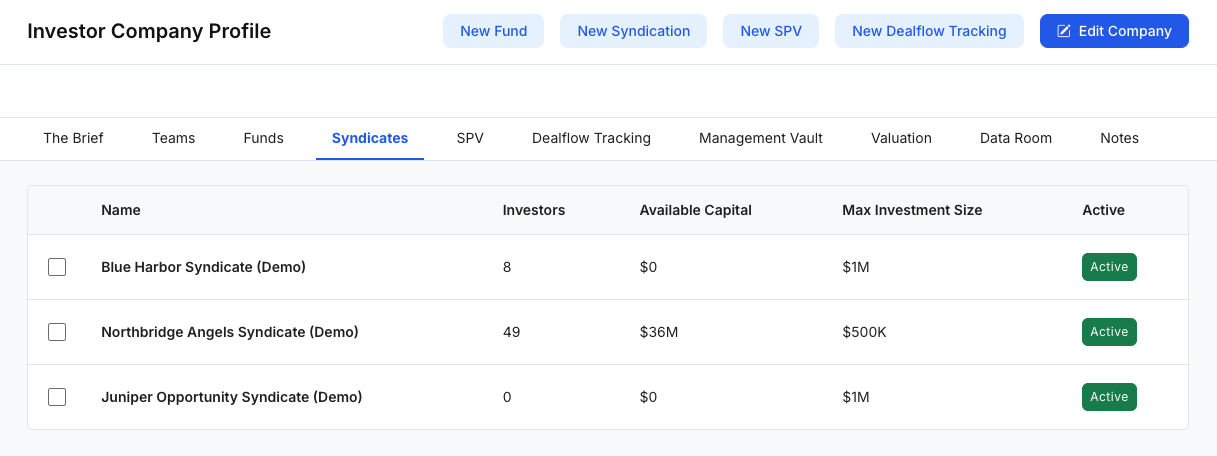
The Syndicates list appears under Investor Company Profile → Syndicates and provides a quick snapshot of each syndicate. Common columns include:
- Name
- Investors (count)
- Available Capital
- Max Investment Size
- Active (status indicator)
Use this view to quickly compare syndicates and identify which are active and well-capitalized.
Create a new Syndicate
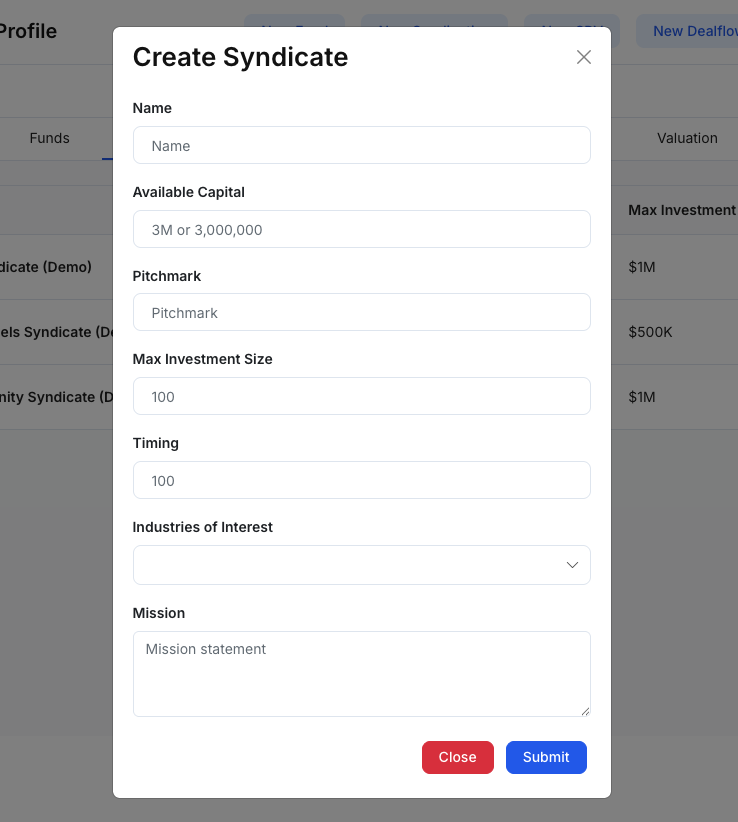
Figure 2 — Create Syndicate modalTo create a syndicate, click New Syndication (or similar) from the Investor Company Profile.
In the Create Syndicate modal, you may be asked to provide:
- Name
- Available Capital
- Pitchmark (internal short identifier)
- Max Investment Size
- Timing (e.g., 60-Month)
- Industries of Interest
- Mission (mission statement)
Submit to create the Syndicate and make it available for team use.
Syndicate details workspace
Selecting a syndicate opens a dedicated workspace with tabs and summary panels.
Right-side summary (Syndicate Information)
A Syndicate may show a quick summary panel including:
- Members (count)
- Investors (count)
- Max Investment Size
- Timing
- Total Available Capital
- Total Annual Fees (if fees are enabled/tracked)
A separate Contact Information panel may show the syndicate’s primary contact details.
Common actions:
- Edit Syndicate (if you have permission)
Common Syndicate tabs (high level)
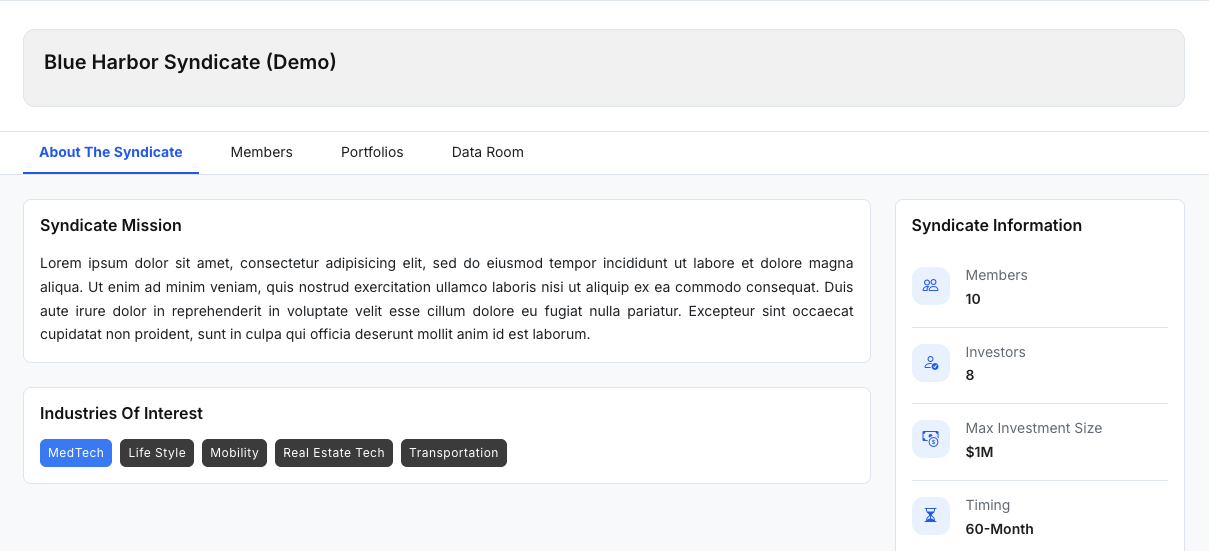
1) About The Syndicate
This tab typically includes syndicate positioning and preferences, such as:
- Syndicate Mission
- Industries of Interest
Use this as the “profile” page to understand what the syndicate focuses on.
2) Members
The Members tab helps manage the people/entities associated with the syndicate.
Common elements include:
- Invite Member (when enabled)
- A members table with columns such as:
- Name
- Membership Type
- Main Contact
- Annual Fee
- Available Capital
- Investors (count)
Use this tab to keep the syndicate’s member roster and fee/capital details accurate over time.
3) Portfolios
This tab summarizes portfolio activity tied to the syndicate.
You may see:
- High-level totals (e.g., Total # of deals, Total invested, Average deal)
- A portfolio company table (e.g., company name, closing date, time count days, total invested)
Use this tab to quickly understand how the syndicate is deploying capital across deals.
4) Data Room
The Data Room provides syndicate-level document storage in a folder structure.
Common actions include:
- Upload File
- Folder navigation/tree
- Create Folder
- A file table with File / Upload By / Uploaded Date
Use this area to store operating documents, member materials, and other syndicate-related files.
Edit a Syndicate
From the Syndicate workspace, click Edit Syndicate (if you have permission). Typical editable fields may include:
- Syndicate identity (name, pitchmark, avatar)
- Capital and limits (available capital, max investment size, timing)
- Primary contact selection
- Industries of interest
- Mission text (rich text)
- Optional appearance settings (e.g., text/background colors)
Click Save to apply changes.
Suggested workflow (simple)
- Create a Syndicate and set basic limits (Available Capital, Max Investment Size, Timing).
- Configure focus areas with Industries of Interest and add a clear Mission.
- Add or invite members in Members and confirm fees/capital details (if applicable).
- Review deployment in Portfolios to understand deal activity and totals.
- Store supporting documents in the Data Room and keep the primary contact up to date.