
Capital Calls
Capital Calls help your team manage the funding process for a startup—capturing target amounts, timelines, investment details, and tracking how much has been committed versus what remains open.
What Capital Calls are used for
Use Capital Calls to:
- Track fundraising activity for a specific company (startup)
- Define call timelines (open/close dates) and target amount
- Capture valuation and pricing references (when applicable)
- Monitor progress using key totals (Committed vs Open)
- Keep the team aligned on the current call Status (e.g., Open / Closed / On Hold)
Availability of fields and actions may vary based on your organization’s setup and permissions.
Capital Calls list (at a glance)
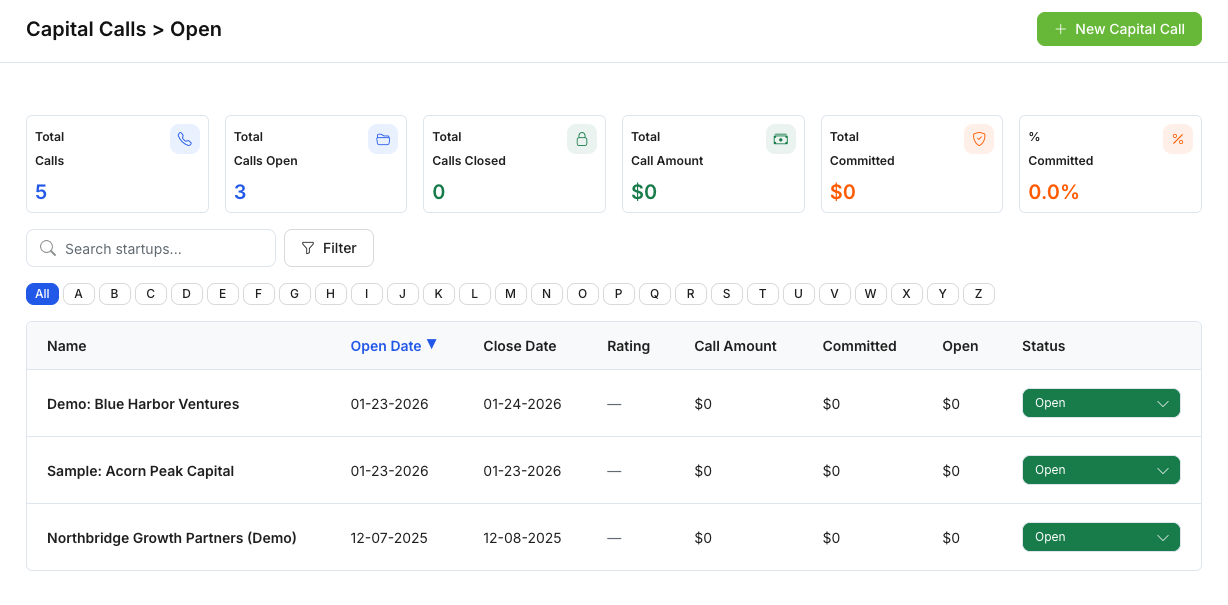
The list view provides a quick snapshot across all calls. Common columns include:
- Name (company/startup)
- Open Date / Close Date
- Rating (if enabled)
- Call Amount
- Committed
- Open
- Status (editable in-row, depending on permissions)
Use the list to quickly identify which calls are active, which are closed, and which may be paused or pending.
Create a new Capital Call
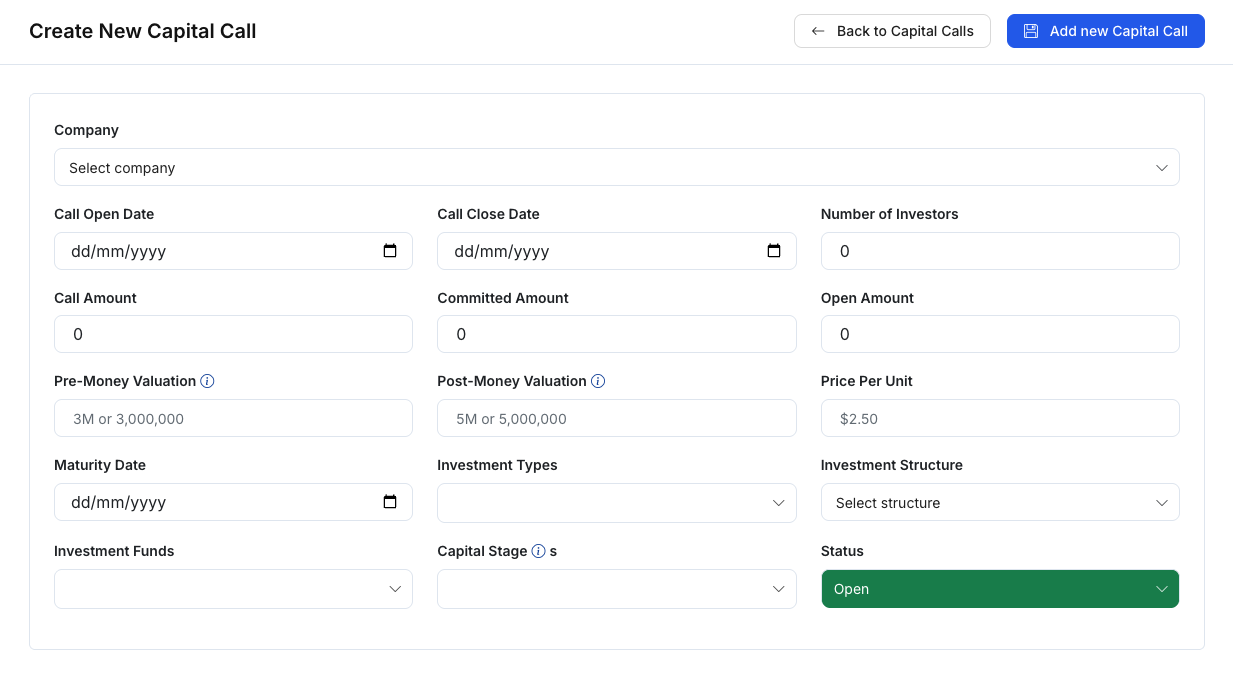
To create a new record, select Add new Capital Call (or create it from another workflow area, if your organization supports it).
On the Create New Capital Call form, you may see fields such as:
- Company (the startup this call applies to)
- Call Open Date / Call Close Date
- Call Amount, Committed Amount, Open Amount
- Pre-Money Valuation, Post-Money Valuation
- Price Per Unit (if applicable)
- Maturity Date (if applicable)
- Investment Types and Investment Structure
- Investment Funds (if your organization tracks funds here)
- Capital Stage
- Status (e.g., Open)
After entering the details, save the record to make it available in the Capital Calls list.
Status and lifecycle (high level)
Capital Calls typically move through a simple lifecycle using Status, such as:
- Open: actively raising / accepting commitments
- On Hold: paused or waiting on next steps
- Closed: no longer accepting commitments / completed
Exact statuses and what they mean can differ by organization.
Notes
- Some fields may be optional or informational depending on your workflow.
- If you don’t see certain actions (like editing status), it may be permission-based.