
Contacts
Contacts is the system’s central address book for people and organizations (Investors, Founders, Employees, Admins, Sponsors, etc.). It stores contact details, classification, membership status, and provides a per-contact workspace to view related information such as Data Room / Notes / Portfolios.
What Contacts are used for
Use Contacts to:
- Store and manage contact information (email, phone, LinkedIn, address, etc.)
- Categorize contacts (e.g., Investor, Founder, Employee, Admin)
- Track membership status (active/inactive)
- Assign roles and verify Is User (whether the contact has a login account)
- View contact-related areas: Investment Entities / Data Room / Notes / Portfolios
- Use quick actions like Send Email, Add Note, Delete Contact (permission-based)
A contact can represent either an individual or an organization (e.g., “Birmingham Angels” as a contact record).
Contacts list
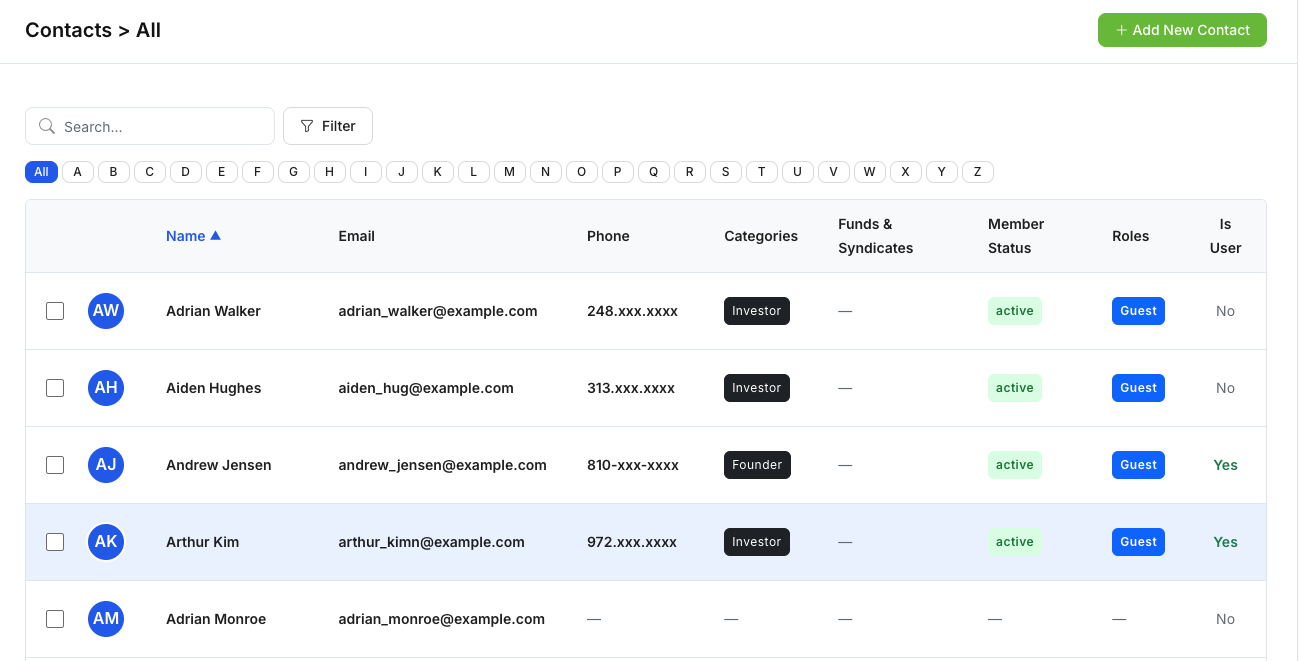
1) Left-side groups
Common group filters with counts, such as:
- All
- Employee
- Investor
- Founder
- Admin / Super Admin
- Sponsor
- Custom groups (e.g., Venture Partners – Pre/Seed, Series A)
2) Contacts table
Common columns include:
- Name
- Phone
- Categories
- Funds & Syndicates
- Member Status
- Roles
- Is User (Yes/No)
- Row checkboxes for bulk actions (if enabled)
3) Add Contact
Click + Add New Contact to create a new contact.
Add Contact modal
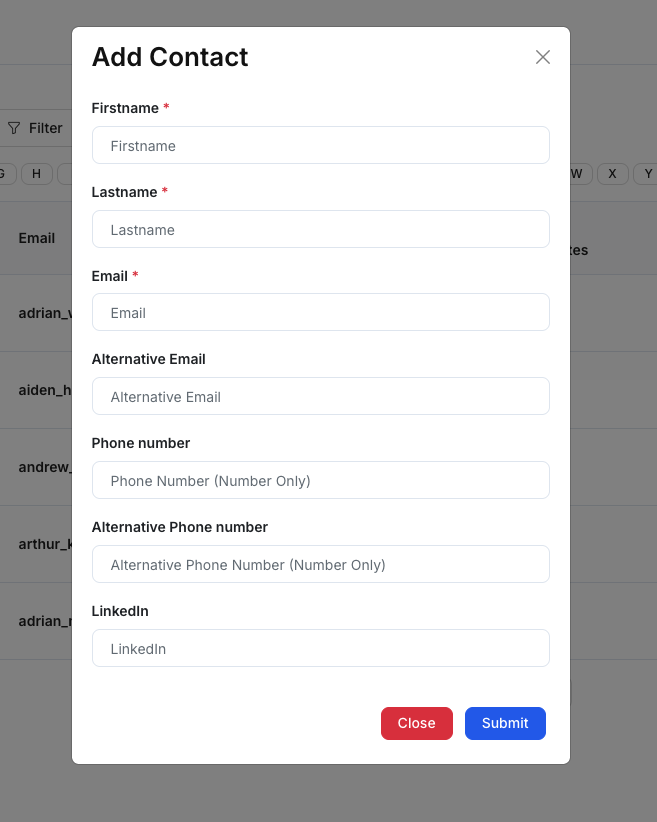
The Add Contact modal typically includes:
- Firstname*
- Lastname*
- Email*
- Alternative Email (optional)
- Phone number (optional)
- Alternative Phone number (optional)
- LinkedIn (optional)
Actions:
- Submit: creates the contact
- Close: exits without saving
Contact Details (contact workspace)
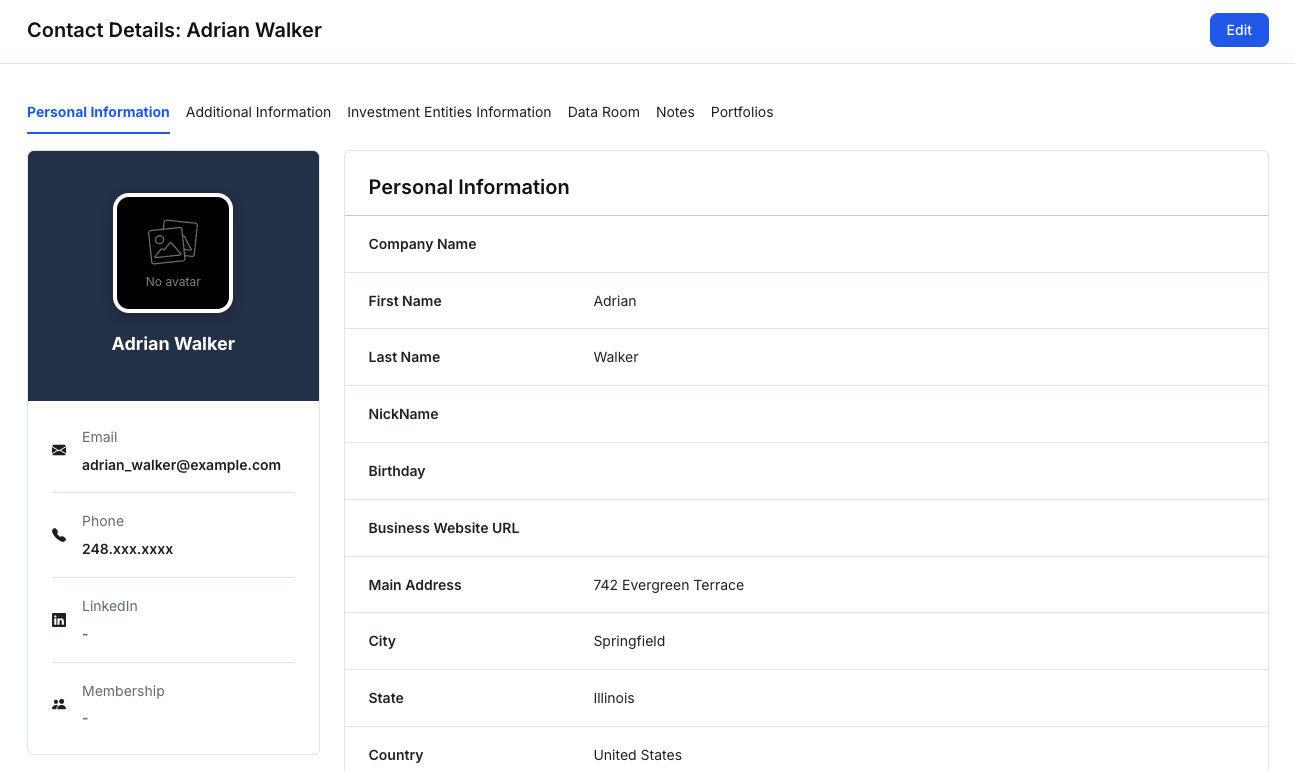
Figure 3 — Contact workspace (summary, actions, tabs)Opening a contact typically shows:
A) Left summary panel
- Avatar/logo
- Name
- Email, Phone, LinkedIn
- Membership (if applicable)
B) Quick Actions
- Send Email
- Add Note
- Delete Contact
Actions are permission-based.
C) Tabs
1) Personal Information
Typical fields include:
- Company Name (if applicable)
- First Name / Last Name / Nickname / Birthday
- Business Website URL
- Address (Street/City/State/Country/Zip)
- Investor Role (e.g., Guest)
- Categories
- Profile Created
2) Additional Information
Often grouped into sections such as:
- Emergency Contact
- Legal Representative
- Accounting CPA
(Each may include name/phone/email fields.)
3) Investment Entities Information
Displays:
- Investment & Fees
- Investment Entities
If no data exists, the page may show “No … available”.
4) Data Room
Contact-specific Data Room:
- Folder list (Corporate Files / Operating & Subscription / Tax Filing & K1 / etc.)
- File table (File / Upload By / Uploaded Date)
- Upload File
- Create Folder
5) Notes
Internal notes per contact:
- Notes list (or empty state)
- + Add New Note
6) Portfolios
Portfolio summary tied to the contact:
- Metric cards (e.g., Total Transactions, Total Investments, Total Amount Invested, Current Portfolio Value, Potential M.O.R, etc.)
- Portfolio table (Company Name, Funds, Investment Types, Maturity Date, etc.)
Edit Contact
Click Edit to update contact information.
Personal Information (Edit)
Update fields such as:
- Name, email/phone/LinkedIn, address
- Investor Role, Categories
- Preferred Investment Types / Preferred Investment Size / Industries of Interest (if enabled)
Additional Information (Edit)
Notable behavior:
- You can Select Existing Contact (search an existing contact)
- Or Create New Contact inline (enter first/last name, phone, email)
This is commonly used for Emergency Contact / Legal Representative / Accounting CPA sections.
Actions:
- Save / Cancel
Teams vs Contacts (quick difference)
Teams
- Who: Internal staff members in your organization (partners, ops, analysts, managers)
- Purpose: Access control and internal collaboration (roles/permissions to operate the workspace)
- Typical outcome: A team member can usually log in and work in the system
Contacts
- Who: External and internal relationships (investors, founders, sponsors, organizations) stored as a directory
- Purpose: CRM-style contact management + per-contact workspace (Data Room/Notes/Portfolios)
- Typical outcome: A contact may or may not have a login account (Is User)
Rule of thumb:
- If it’s someone who works on your platform → Teams
- If it’s someone you track/manage as a relationship → Contacts