
Notes
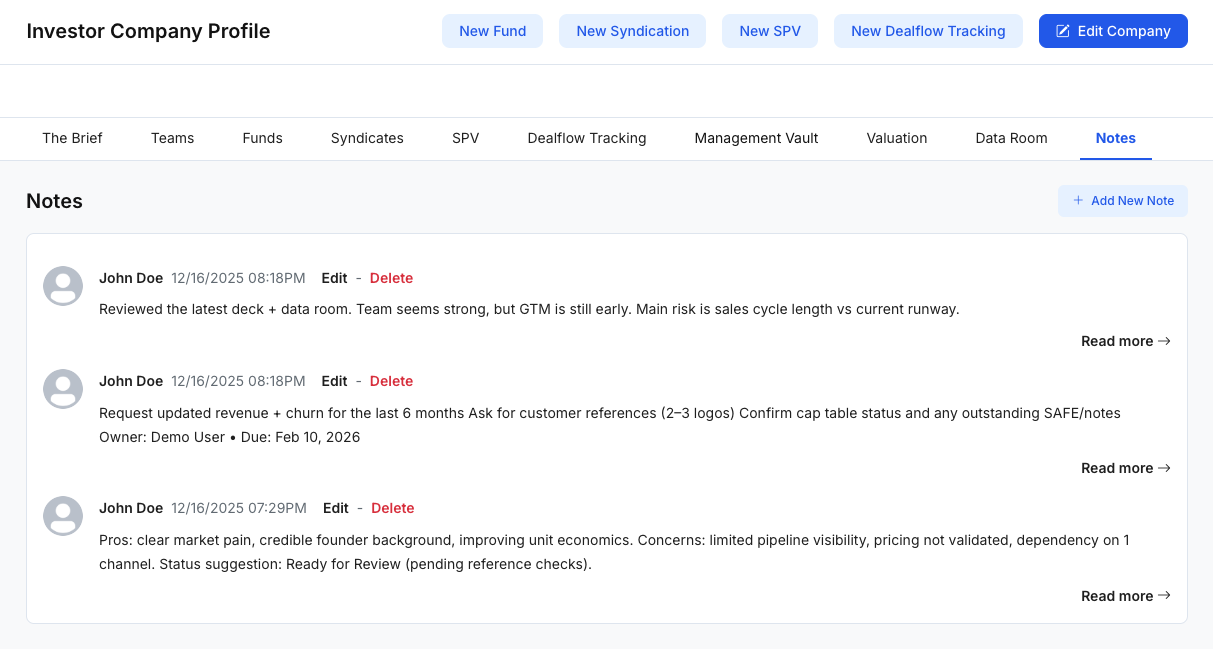
Notes provide a simple way for your team to capture internal context, decisions, and follow-ups directly inside the investor workspace. Notes are commonly used to record meeting takeaways, reminders, risk flags, and operational updates—so the team can stay aligned without relying on external chat threads.
What Notes are used for
Use Notes to:
- Record internal context (why a decision was made, important background)
- Track action items (next steps, owners, deadlines—if your team includes them in notes)
- Capture deal/company updates (quick updates without creating a formal report)
- Maintain continuity across team members and handoffs over time
Visibility and actions (Add/Edit/Delete) may vary depending on your role permissions.
Notes list (at a glance)
The Notes page displays a chronological list of notes. Each note typically shows:
- Author (who created the note)
- Timestamp (date/time)
- A preview/snippet of the content
- Actions such as Edit and Delete (if permitted)
- Read more to expand and view the full note content
This view is designed for quick scanning and retrieving recent internal updates.
Add a new Note
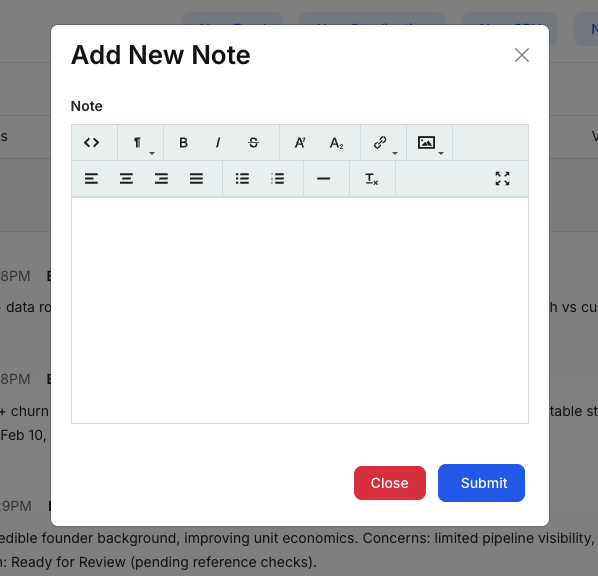
Click Add New Note to create a new entry.
In the Add New Note modal:
- Enter your note in a rich text editor (supports formatting such as bold/italic, lists, links, etc., depending on the editor configuration).
- Click Submit to save the note.
- Click Close to exit without saving.
After saving, the new note appears in the Notes list with your name and timestamp.
Edit / Delete Notes
If enabled for your role:
- Edit: Updates the note content while keeping it in the same list entry.
- Delete: Removes the note from the list.
Teams typically use these actions to correct mistakes, update evolving context, or remove outdated information.
Notes
- Notes are intended for internal use and team alignment, not external sharing.
- If you want consistency, many teams adopt a simple structure (e.g., Summary / Decisions / Next Steps).