
Events — Overview
Events is where your organization creates, publishes, and manages investor events (e.g., pitch nights, demo days, office hours, webinars). Events supports both list and calendar views, attendee tracking, optional post-event surveys, and a public event page that attendees can view and register from.
Fields and actions may vary by organization configuration and role permissions.
Where to find Events
Navigate to Events from the main sidebar. From here you can:
- Browse upcoming and past events
- Create a new event
- Switch between List and Calendar views
- Connect external calendars (Google Calendar / Outlook), when enabled
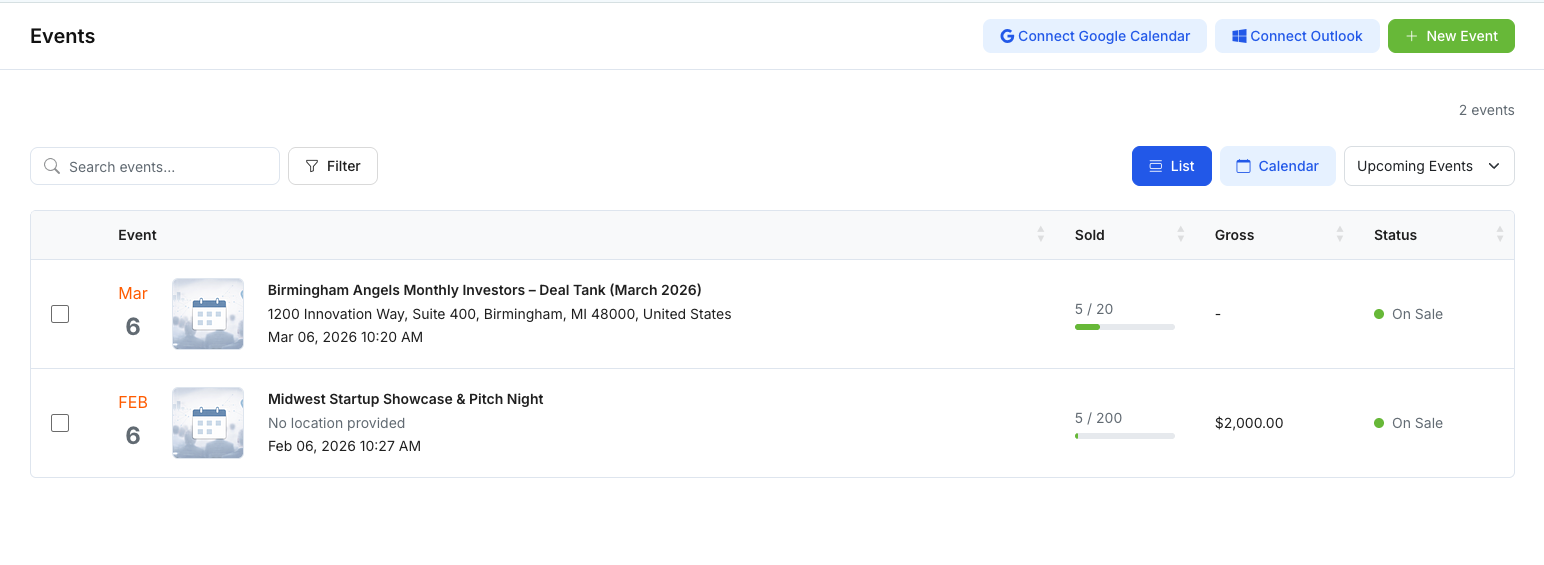
Events list vs calendar view
Events can be viewed in two primary ways:
List view (best for scanning)
Use List view to quickly compare events, including:
- Event name, date/time, and location
- Status (e.g., Draft/On Sale/Published, depending on your setup)
- Tracking columns (e.g., Sold/Gross), if enabled
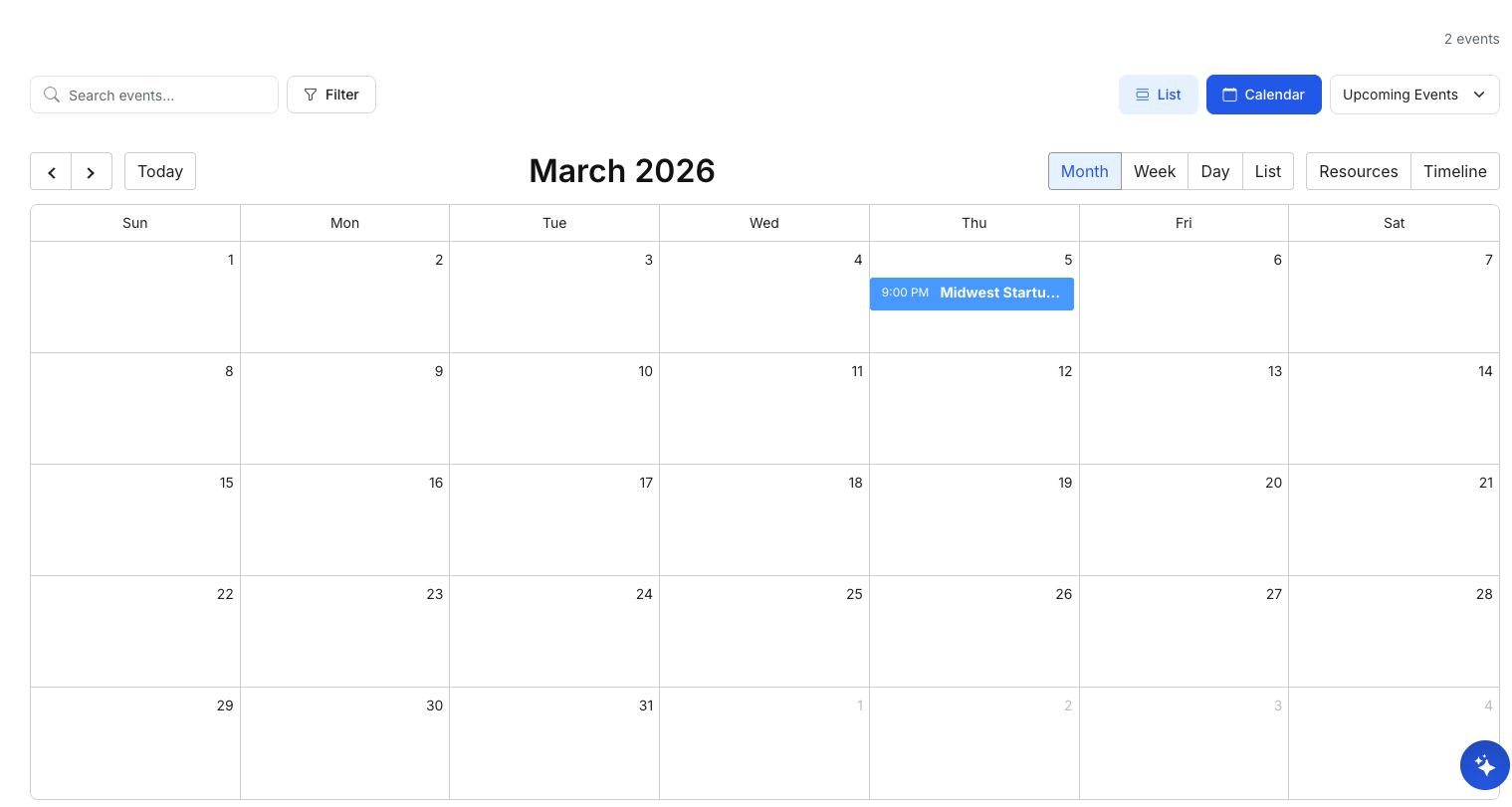
Calendar view (best for scheduling)
Use Calendar view to see events on a timeline and switch between:
- Month / Week / Day / List (depending on configuration)
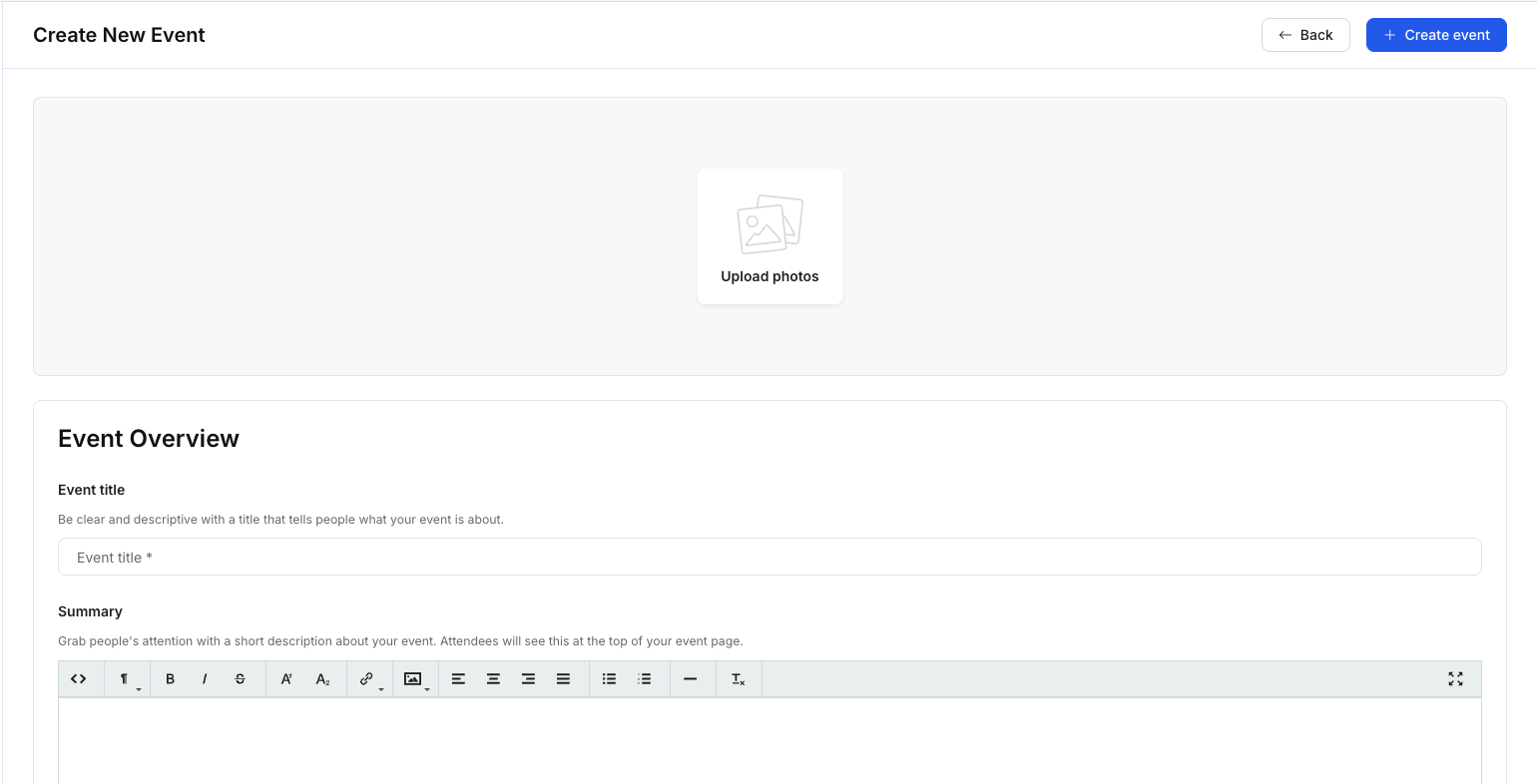
Create and publish an event (high level)
To create an event:
- Click New Event
- Complete event details (title, summary, date & location, optional sections)
- Save and publish when ready
Public event page (what attendees see)
Once published, an event can have a public-facing page that may include:
- Cover image/banner
- Date/time, location, and registration call-to-action (e.g., “Register Now”)
- Overview and agenda
- Startup lineup (when enabled)
- Location map (for in-person events)
- Sponsors section and legal disclaimer (when configured)
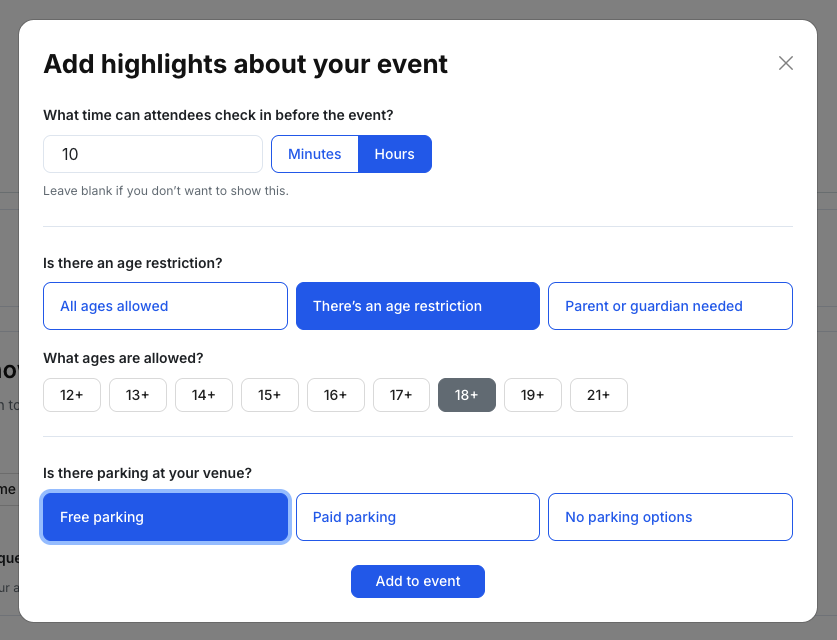
Highlights (optional)
Some events support “highlights” such as:
- Check-in/door time (e.g., allow check-in X minutes before start)
- Age restrictions
- Parking information
What’s included in the Events module
This Events section is documented in the following pages:
- Create & Publish an Event
- Public Event Page
- Manage Attendance
- Create a Survey for an Event
- View Survey Responses & Reporting
Tips
- Use List view for operational scanning; use Calendar view for schedule planning.
- Confirm timezone and links (meeting/registration) before publishing.