
Create a Survey for an Event
SidePitch uses Event Survey Templates to define post-event surveys. You create a reusable template (questions + result display behavior), then attach it to an event as the Post-event survey. After the event, attendee responses can be reviewed in reporting (see: View Survey Responses & Reporting).
Availability of survey features may vary by role permissions and organization configuration.
Overview: how it works
- Create a Survey Template (Admin / Event Survey Templates)
- Attach the template to an event (Event editor → Post-event survey)
- Collect responses after the event
- Review results in survey responses/reporting
Step 1 — Open Event Survey Templates
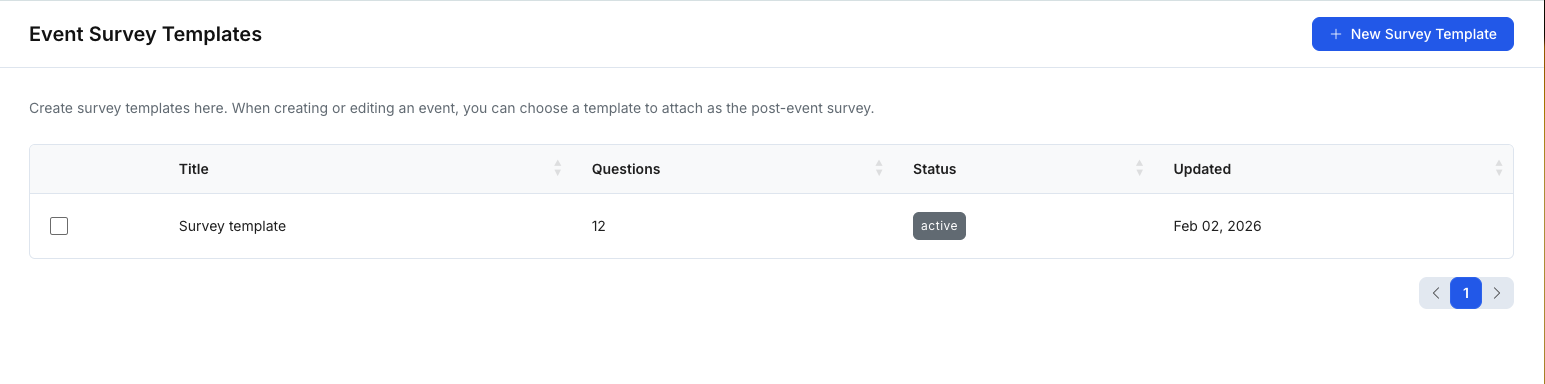
Go to Event Survey Templates and review existing templates.
- Use this page to see template Title, number of Questions, Status, and Updated date.
- Click New Survey Template to create a new one.
Step 2 — Create a new survey template
Click New Survey Template.
2.1 Survey details
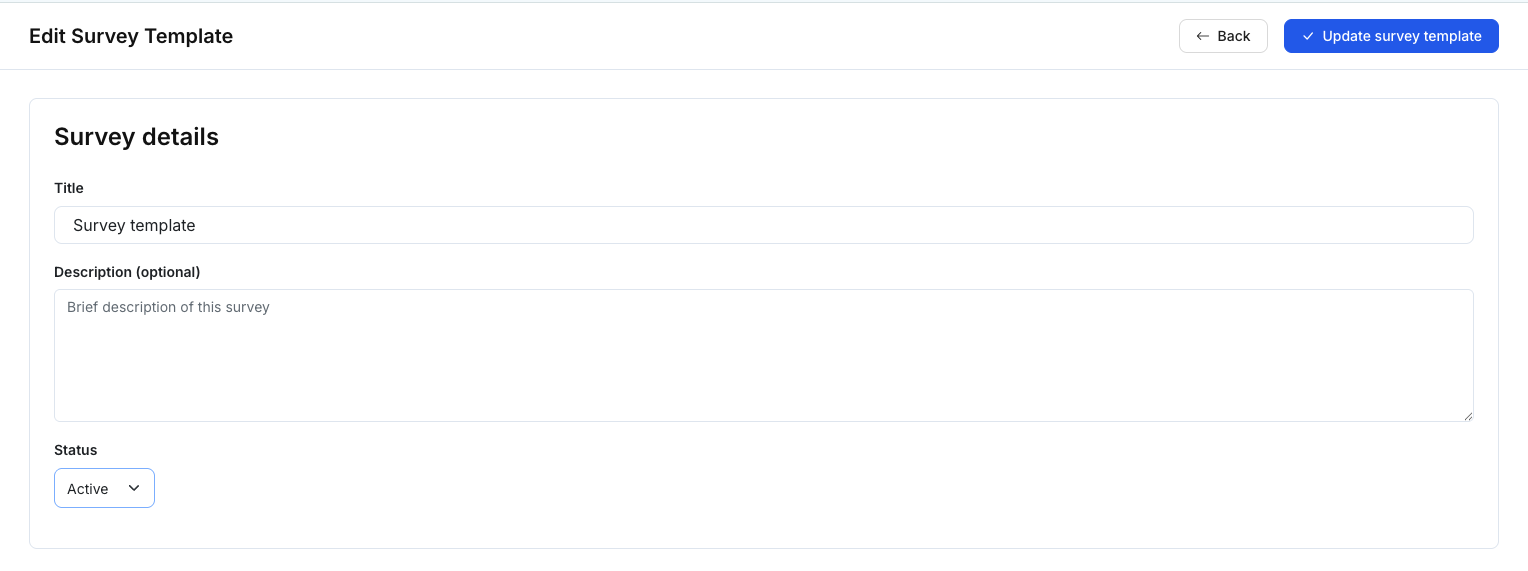
Complete the top section:
- Title: A clear naming convention helps (e.g., “Post-event Feedback — Deal Tank”).
- Description (optional): What the survey is used for.
- Status: Start in Draft while building; set to Active when ready to use.
Step 3 — Add survey questions
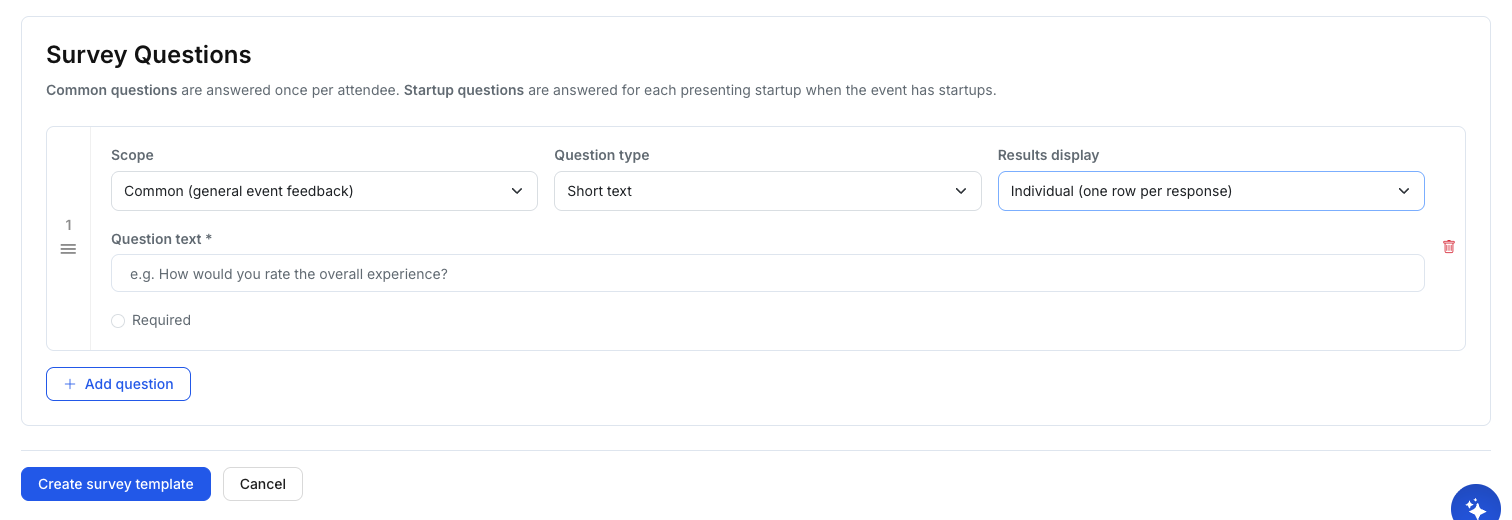
In Survey Questions, build your question set. Each question supports:
3.1 Scope
Scope determines when the question is answered:
- Common (general event feedback): Answered once per attendee.
- Startup (per presenting startup): Answered once per startup for each attendee when the event has presenting startups.
If your event does not have startups attached, “Startup (per presenting startup)” questions may not apply.
3.2 Question type
Choose an input type such as:
- Short text
- Long text (textarea)
- Single choice
- Multiple choice
- Rating scale
- Yes / No
3.3 Results display
This controls how results are shown later in reporting, for example:
- Individual (one row per response): Useful for qualitative answers.
- Average (for ratings): Useful for rating scales (e.g., 1–5).
- Summary (totals / count / distribution): Useful for choice questions and Yes/No when you want an aggregated view (totals and breakdown by option).
3.4 Add / remove questions
- Click Add question to add another question.
- Use the delete/trash icon to remove a question.
- Mark a question Required when you want to enforce completion.
Step 4 — Save the template
When finished:
- Click Create survey template (or Save) to store it.
- Set Status = Active when the template is ready to be attached to events.
Tip: Keep a stable “core” survey template (experience + logistics), and create specialized templates for specific event formats (pitch night vs office hours).
Step 5 — Attach the survey to an event (Post-event survey)
Open the event editor (Create/Edit Event) and find Post-event survey:
- Choose the survey template you created.
- Save/update the event.
If you don’t see your template in the dropdown, confirm the template is Active and that you have access to it.
Tips
- Use Average display for rating questions, and Summary for choices/Yes-No to get a clean reporting view.
- Keep free-text questions limited to avoid overwhelming reviewers.
- Use consistent template naming (e.g., “001 — Post-Event Feedback (Standard)”).
Notes
- Survey templates are often admin-managed. If you can’t create/edit templates, it may be permission-based.
- The “Startup (per presenting startup)” scope is most useful for pitch/demo events where multiple startups present.