
Create an Account (Investor vs Startup)
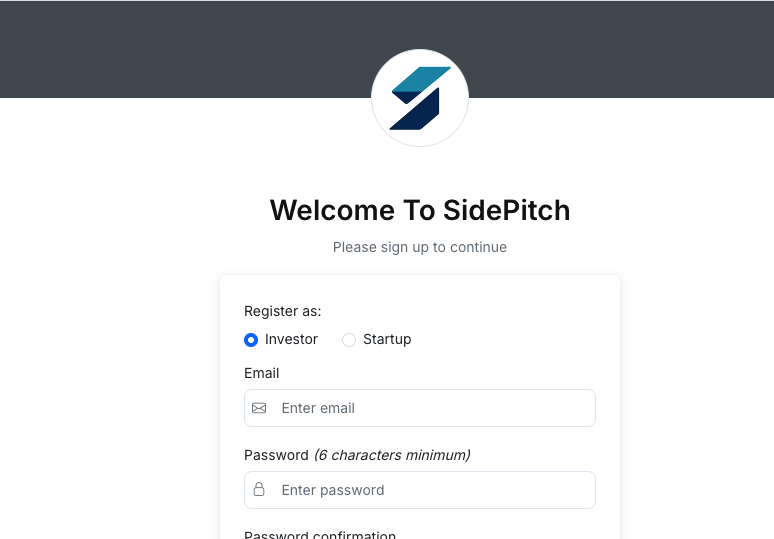
Use the registration page to create a SidePitch account. During sign up, you must choose whether you are registering as an Investor or a Startup. The account type determines what you see after email verification.
Before you begin
- You need access to the email address you register with.
- Email verification is required before you can access the product.
Step 1 — Choose your account type
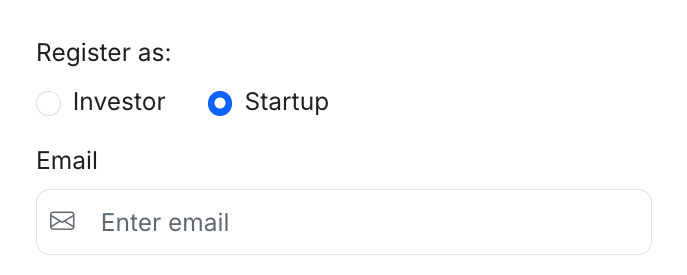
On the registration page, under Register as:
- Select Investor if you are investing (individual or organization).
- Select Startup if you are registering as a company/founder.
Note: The form may change slightly based on the selected account type.
Step 2 — Complete the registration form
Fill in the required fields:
- Password (minimum 6 characters)
- Password confirmation
- First name and Last name
- Gender
- Date of Birth (Day / Month / Year)
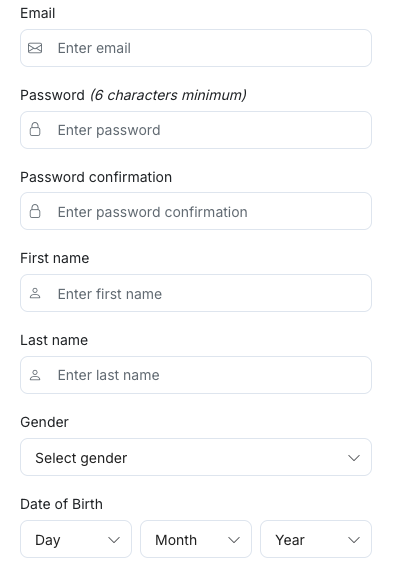
If you selected Startup, you will also see:
- Invite Code: Enter the code provided to you (if required by your organization/program).
Step 3 — Accept agreements and submit
- Check the box to accept the Terms of Service and Funding & Syndication Agreement.
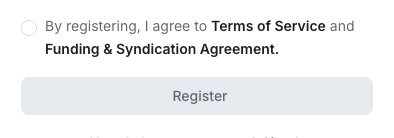
- Click Register.
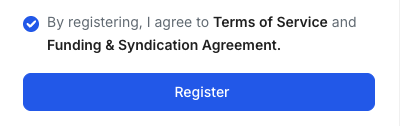
If Register is disabled, confirm that all required fields are complete and the agreement checkbox is selected.
Step 4 — Verify your email
After registration, SidePitch sends a verification email to your inbox.
- Open the email and click the verification link to activate your account.
- Return to SidePitch and sign in.
For help, see: Verify Your Email Address.
What happens after verification?
After you verify your email, your next step depends on your account type:
Startup accounts
- You are taken directly to the Startup dashboard after signing in.
Investor accounts
- After signing in, the Investor dashboard prompts you to choose one of the following:
- Create a new company (for setting up a new organization on SidePitch)
- Join an existing company (to access a company that is already set up)
Common issues
- Password too short: Ensure it meets the minimum length.
- Passwords don’t match: Re-enter the same password in both fields.
- Invite Code error (Startup): Confirm the code is correct and has not expired (if applicable).
- No verification email: Check Spam/Junk, then use Resend confirmation instructions.