
Dealflow
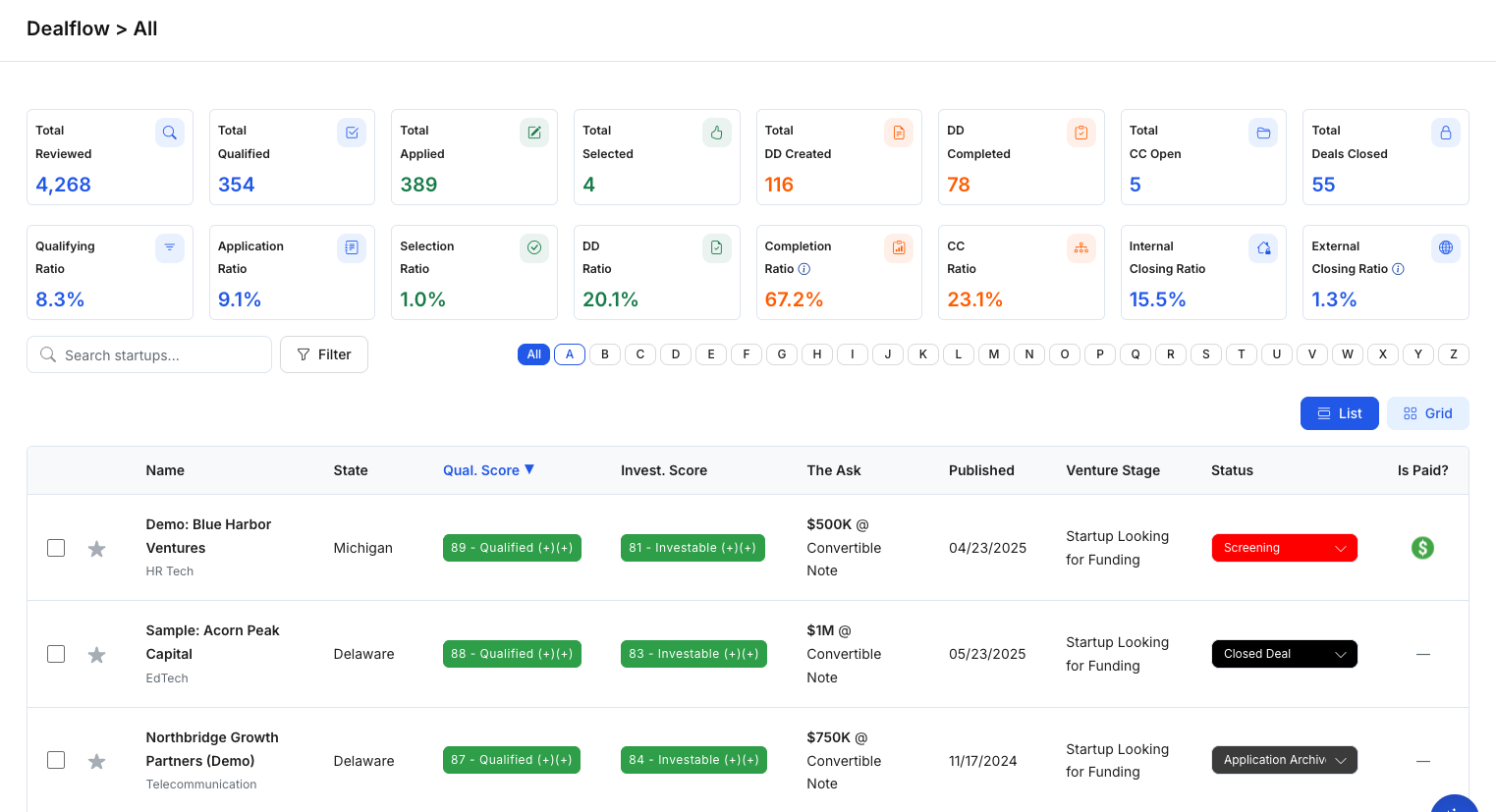
Dealflow is the primary workspace where investors review and track startups available to their organization. It works like a shared pipeline: you can scan key details, prioritize opportunities, update internal statuses, and open a startup profile for deeper review.
What you can do in Dealflow
- Browse available startups in a sortable list or a grid view.
- Compare key signals (stage, ask, publish date, scores when enabled).
- Update workflow status to reflect where each startup is in your internal process.
- Open a startup profile to review full application details, notes, and files.
- Start due diligence by creating a DD workout from a template.
How startups appear in Dealflow
Startups appear in Dealflow after they are available to your investor organization—typically once a startup has completed and published its application (subject to visibility rules and permissions).
List vs Grid view
Use the toggle at the top-right of the page to switch between:
- List: Best for scanning columns, sorting, and quick side-by-side comparison.
- Grid: Best for browsing opportunities in a card-style layout (when enabled).
Understanding the Dealflow list
Common fields you may see include:
- Name: Startup name (often with an industry tag).
- State: Location/state.
- Qual. Score / Invest. Score: Scoring indicators (shown only if configured for your organization).
- The Ask: Fundraising ask (amount and instrument).
- Published: When the startup became available (often sortable).
- Venture Stage: A high-level maturity indicator.
- Status: Your team’s internal workflow stage.
- Is Paid?: A flag/indicator shown for applicable listings.
Update a startup’s status
Statuses help your team stay aligned on progress (for example: initial review → intro pitch → deeper diligence → decision).
- Find the startup in the list.
- Use the Status dropdown in the startup row.
- Select the appropriate status for your process.
Status labels are defined by your organization and may vary across teams.
Open a startup for detailed review
Dealflow is designed for quick scanning. To review full details:
- Click a startup row (or startup name).
- SidePitch opens the Startup Profile, where you can review application sections such as Company Information, Team, Business Case, Financials, and the Data Room.
Start Due Diligence (DD Workout)
Dealflow is also the starting point for due diligence. When you choose Start DD Workout, SidePitch creates a Due Diligence workspace from a template.
- Select a startup in Dealflow.
- Click Start DD Workout.
- Choose a template in the modal (templates may differ by task count and structure).
- Click Start DD Workout to create the due diligence workspace.
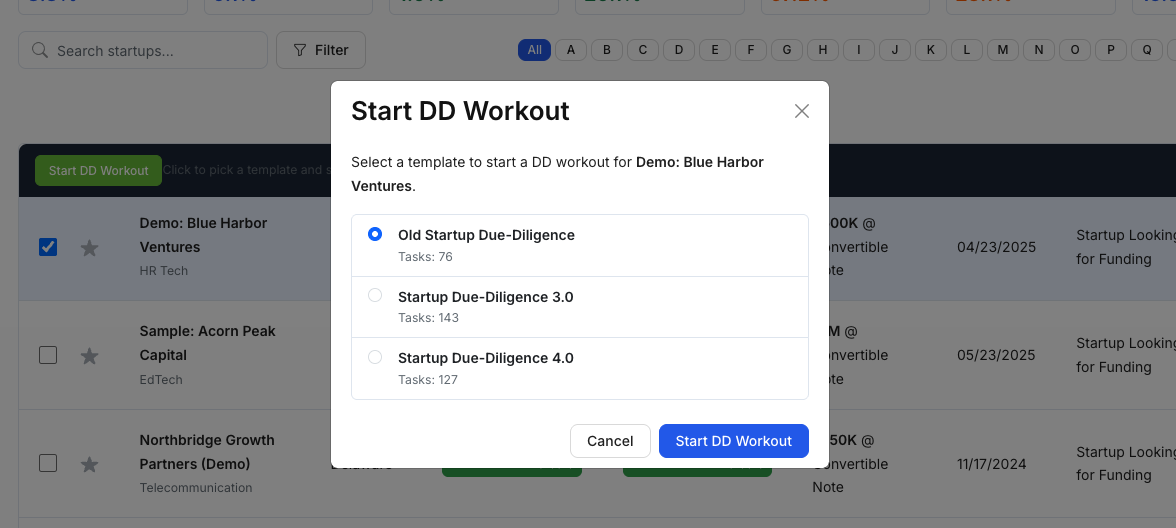
Figure 2 — Start a DD Workout from a templateTips
- If you don’t see scoring columns, scoring may not be enabled for your organization.
- If you don’t see Start DD Workout, you may not have permission or due diligence templates may not be configured.
- Use statuses consistently so your Dealflow stays clean and actionable.