
Pipeline
Pipelines is a lightweight CRM-style tool for tracking leads and managing follow-ups. It helps your team keep prospects organized, link them to the right investor contacts, set next follow-up dates, and move each lead through defined stages.
What Pipelines is used for
Use Pipelines to:
- Capture leads (people/organizations you’re engaging with)
- Track the current stage of each lead (e.g., Follow Up, BA Info Sent, Closed, etc.)
- Schedule the next touchpoint using Follow Date & Time
- Associate leads with investor contact(s) via Assign Lead
- Categorize leads (Pipeline Categories) for filtering and reporting
Stages, categories, and available actions may vary by configuration and permissions.
Pipelines list (at a glance)
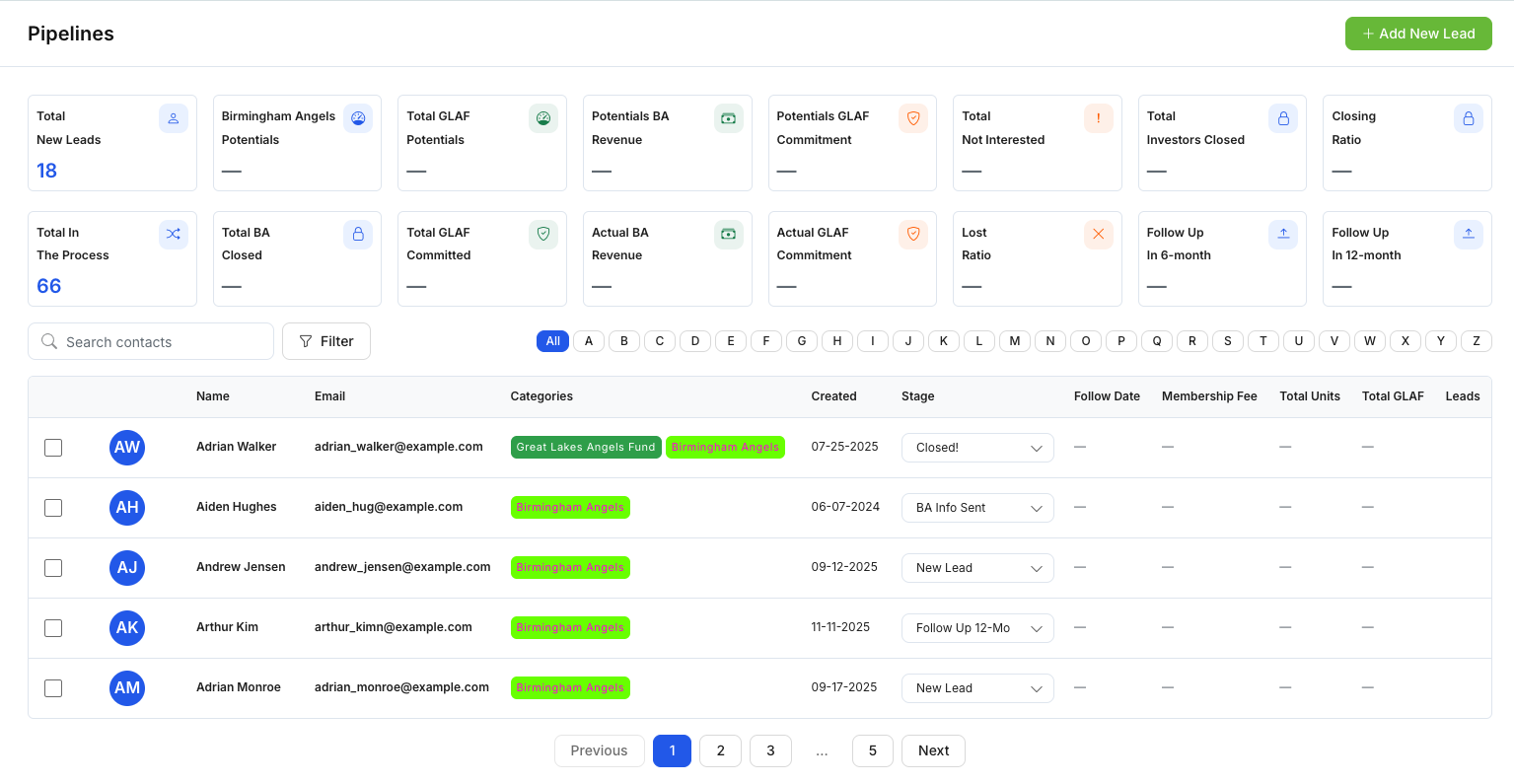
The Pipelines page displays a table of pipeline entries. Common columns include:
- Name
- Categories
- Created
- Stage (often editable per row via a dropdown)
- Follow Date (next follow-up date/time)
- Membership Fee (if enabled)
- Total Units / Total GLAF (if enabled)
- Leads (indicator/icon, implementation may vary)
- Row checkboxes (for bulk actions)
Common actions (top buttons)
Depending on your permissions, you may see:
- Assign Lead: Link selected pipeline entries to one or more investor contacts.
- Follow Date: Set/update the next follow-up date & time for selected entries.
- Edit: Edit the selected lead’s details.
- Delete: Remove selected entries (permission-based).
Add New Lead
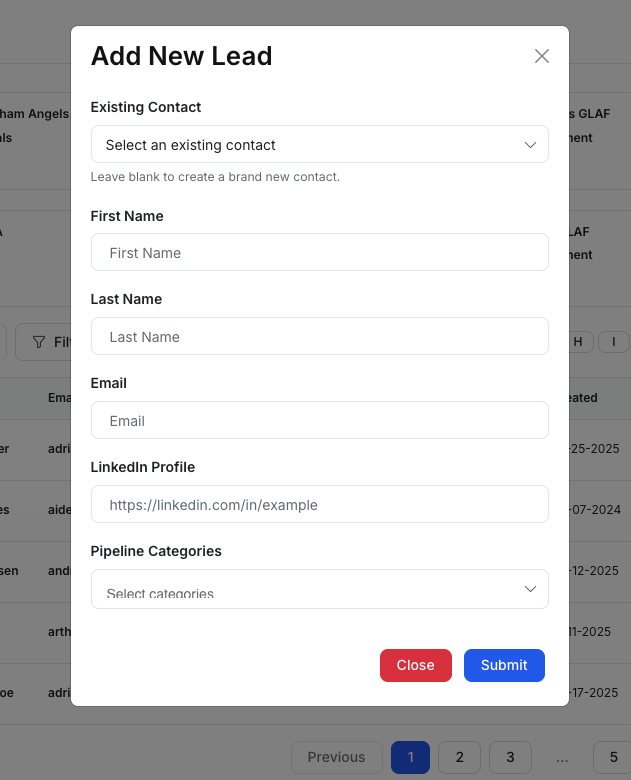
Use Add New Lead to create a pipeline entry.
Option A — Create from an existing contact
- Existing Contact: Select a contact to pre-fill details.
- Helper behavior: “Leave blank to create a brand new contact.”
Option B — Create a brand-new lead
Fill in:
- First Name
- Last Name
- LinkedIn Profile
- Pipeline Categories
Actions:
- Submit: Create the lead
- Close: Exit without saving
Assign Lead (associate contacts)
Use Assign Lead to connect a pipeline entry to one or more investor contacts.
In the modal:
- Select Contacts: choose one or more contacts to associate with the selected entry.
Action:
- Submit to save.
Update Follow Date
Use Follow Date to schedule the next follow-up.
In the modal:
- Set Follow Date & Time (date-time picker)
Action:
- Submit to save.
Edit Lead
Use Edit to update a lead’s details.
Typical fields:
- First Name
- Last Name
- LinkedIn Profile
- Categories (multi-select)
Action:
- Submit to save changes.
Suggested workflow (simple)
- Create a lead (prefer Existing Contact when available).
- Use Assign Lead to link it to the right investor contact(s).
- Set a Follow Date & Time for the next action.
- Keep Stage updated as the lead progresses.
- Use Categories to keep filtering and reporting consistent.