
SPV
An SPV (Special Purpose Vehicle) is a deal-specific legal entity (often “1 SPV = 1 investment into 1 startup”) used to pool multiple investors into a single transaction, manage commitments and admin fees, and centralize related documentation.
What SPVs are used for
Use SPVs to:
- Create a deal-specific investment vehicle for a particular startup
- Manage participating investors/entities and how much each commits
- Track totals and fees (e.g., Total Capital Committed, Total Admin Fee)
- Store SPV documentation (incorporation docs, EIN, subscription documents, tax/K1, legal notices, etc.)
- Maintain operating info (SPV manager, accounting, legal structure details)
Fields, tabs, and actions may vary depending on your organization’s configuration and role permissions.
SPV list (Investor Company Profile → SPV)

The SPV list provides a quick snapshot of all SPVs under the investor company. Common columns include:
- Incorporated Date
- Closing Date
- SPV Name
- Manager
- Investment To (the startup being invested in)
- Committed (total committed capital)
Use this view to scan SPVs by date, manager, and committed amount.
Create a new SPV
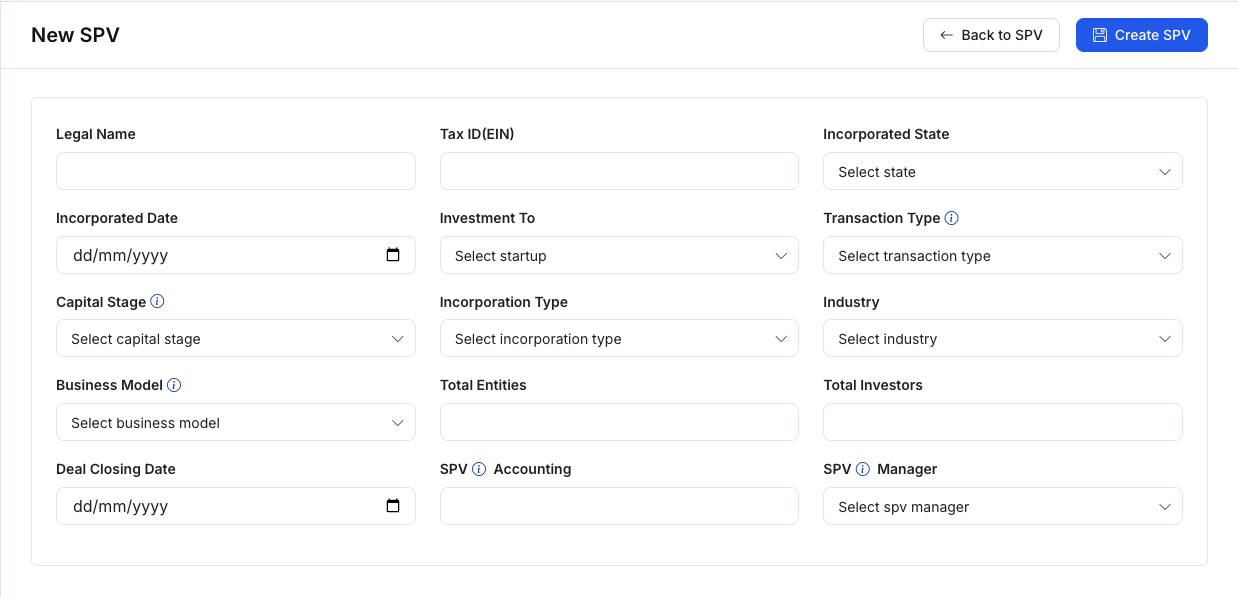
Figure 2 — Create SPVClick New SPV to create a new SPV. The New SPV form typically includes:
1) Legal / Corporate information
- Legal Name
- Tax ID (EIN)
- Incorporated State
- Incorporated Date
- Incorporation Type (e.g., LLC)
2) Deal / Investment information
- Investment To (select startup)
- Transaction Type (e.g., Convertible Note)
- Capital Stage
- Industry
- Business Model
- Deal Closing Date
3) Participation / Administration
- Total Entities
- Total Investors
- SPV Accounting
- SPV Manager
After creating the SPV, it will appear in the SPV list and can be opened in the detail view.
SPV details workspace
The SPV detail page typically includes a top summary area plus tabs for ongoing work.
A) Summary (top cards)
Common summary fields include:
- Legal name, EIN, State, Incorporated Date
- Investment to + Transaction type
- Capital stage, incorporation type, industry, business model
- Total entities, total investors, deal closing date, SPV accounting
- Total Capital Committed, Total Admin Fee
- SPV manager + email/phone (if available)
Common actions:
- Back to SPV
- Edit SPV
SPV tabs
1) Members
The Members tab manages the people/entities participating in the SPV.
- Add Member to add a participant
- The members table commonly includes columns such as:
- Closing Date
- Name
- Investment Entity
- Membership Type
- Committed Capital
- Admin Fee
- # Of Investors
- % Of Ownership
Use this tab to keep commitments and ownership information accurate (where applicable).
2) Data Room
The Data Room is the SPV’s document repository, typically including:
- Folder navigation (e.g., Corporate Files, Operating & Subscription, Tax Filing & K1, Investment Documents, Legal Notifications, General/Other)
- A file table with File / Upload By / Uploaded Date
- Upload File
- Create Folder
Use this to store legal and operational documentation related to the SPV.
3) Note
Internal notes specific to the SPV:
- A list of notes (author, timestamp, preview)
- Add New Note
- May include Edit / Delete depending on permissions
Use notes for decision points, follow-ups, or operational tracking (accounting/tax/closing).
Edit SPV
The Edit SPV page typically mirrors the New SPV form, prefilled with existing values:
- Update legal, deal, and admin fields
- Click Update SPV to save changes
Suggested workflow (simple)
- Create a New SPV → choose Investment To and Transaction Type, then fill core legal details.
- Go to Members → add participants, committed capital, and admin fee (if applicable).
- Go to Data Room → upload EIN/incorporation/subscription documents.
- Use Note → track closing progress and action items.
- Use Edit SPV → update details when anything changes.