
Startup: Create Your Startup Application
After registering, verifying your email, and signing in as a Startup, you can create a Startup Application to set up your company profile and fundraising information.
When to use this
Use this flow when you are ready to create a new startup profile in SidePitch (e.g., for fundraising, visibility, and sharing materials with investors).
Step 1 — Start a new application
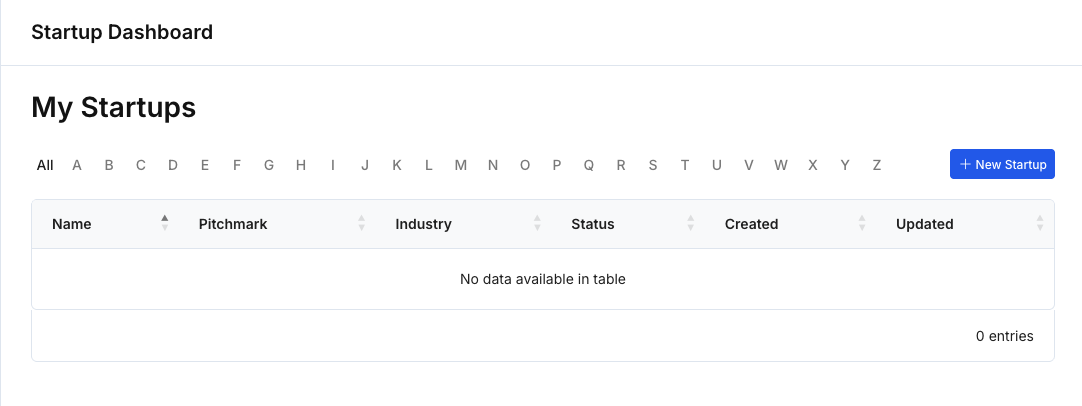
- From your Startup dashboard, click New Startup.
- You will be taken to Startup Application, a guided, multi-step form.
Step 2 — Understand the application structure
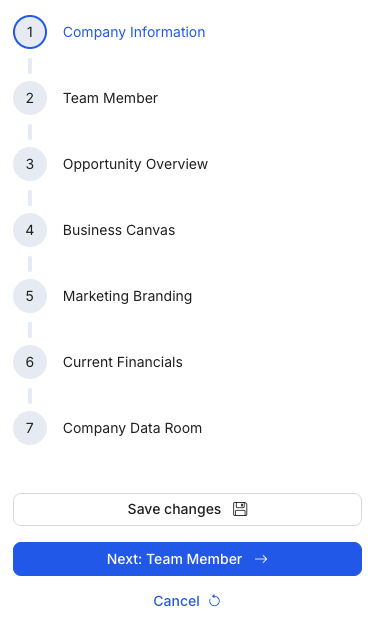
The application is organized into sections shown on the right-hand stepper:
- Company Information
- Team Member
- Opportunity Overview
- Business Canvas
- Marketing Branding
- Current Financials
- Company Data Room
You can move through the application step-by-step using Next at the bottom of each section.
Step 3 — Save your progress as you go
- Click Save changes to save your current progress in a section.
- Use Next to continue to the next section.
- If you need to stop, you can return later and continue where you left off.
Step 4 — Upload materials when requested
Depending on the section, you may be asked to upload supporting materials, such as:
- Company logo
- Pitch deck (file upload)
- Video pitch (URL or file upload)
- Financial and data room documents (as applicable)
Step 5 — Finish and publish
In the final step (Company Data Room), you can upload final documents and then click Publish startup to complete the setup.
Navigation options
- Save changes: Saves the current section.
- Next: Continues to the next section.
- Cancel: Exits the current flow without continuing.
- Back to application: Returns to the Startup Application overview.
Tips
- If you are unsure about certain details (e.g., financials), you can complete the required basics first and return to refine later.
- For uploads, ensure file formats match what the page accepts (e.g., pitch deck files, video formats/links).